Christening photos from family: how to collect them in one album
The easiest way to collect christening photos from family is one online gallery that everyone adds to from their phone via a link or QR code. Below we explain how to set up that gallery, what to tell grandparents and godparents, and how to make sure only close family sees your baby’s photos.

Why christening photos scatter across phones
At a christening, almost everyone takes photos. Grandma snaps pictures in church, the godfather films a short clip at the baptismal font, an aunt catches the baby in grandpa’s arms at lunch. By evening those photos are on a dozen phones, and everyone promises to “send them right over”.
Then some end up in a group chat, some in private messages, and some nowhere at all. A few weeks later it’s hard to tell who has the photo from the baptism and who has the one with the cake. That’s why it’s worth choosing one place for photos before the family sits down to eat.
How to collect christening photos from family: 3 ways
1. A family group chat
If the family already has a shared group on WhatsApp or Messenger, it’s the easiest way to start. Nobody has to open anything new. The downside: messaging apps usually shrink photos, and after a few days the christening photos get lost among other messages. To gather everything in one folder, you then have to save them one by one.
2. A shared cloud album
A shared album in Google Photos or iCloud keeps photos in better quality and is easy to browse. But adding photos usually requires an account, and for some grandparents logging in is a barrier. An iCloud album is convenient mainly for iPhone users.
3. A gallery with a link and QR code
You create a gallery in the browser and give the family a link or QR code. Guests open it on their phones, tap “Add photos” and pick files from their phone’s photo library. No app to install, no account to create. All photos and videos go into one album, which you download as a ZIP file at the end. This option is paid, but the family needs nothing more than their phone camera.
A christening gallery step by step
Here’s how to set up a gallery in Celebrio. You can create and test the whole thing for free before you send the link to your family.
- Create a gallery and pick a design template, like “Linen Christening”. Enter your baby’s name and the date, and add a photo at the top of the gallery.
- Add subfolders, like “Church”, “Lunch” and “Cake”. That way photos from different parts of the day don’t get mixed up.
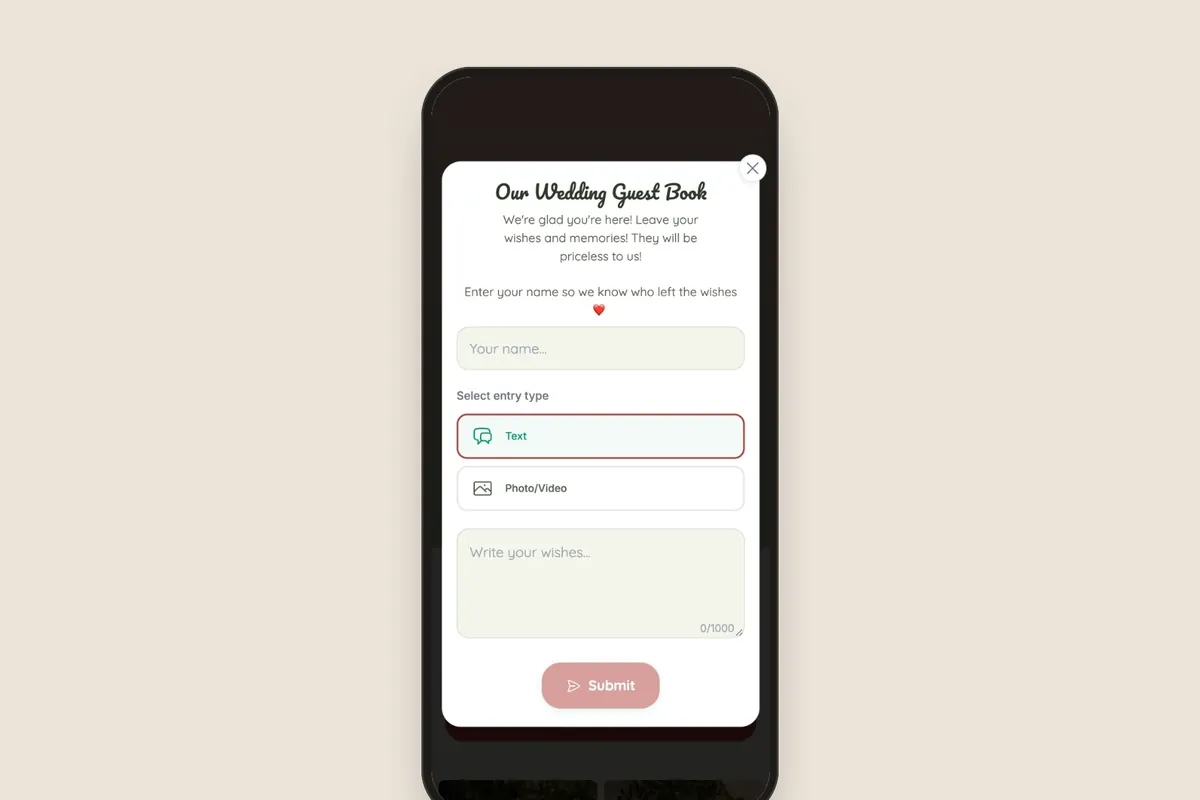
- Turn on the guestbook. Godparents and grandparents can leave wishes for the baby as text, a photo or a short video.
- Print QR code cards from the ready-made templates and place them on the tables at the restaurant. You can match the code color to the template.
- Send the link to the family by text or in the family group chat. Ideally, do it the day before the ceremony and once more the day after.
- After a few days, download everything as a ZIP. Preparing the package can take a few minutes, and you’ll get a notification when it’s ready.

What to tell your family
A short message works better than long instructions. Say where to tap and that there’s nothing to install. For older relatives, it also helps to mention that all they need is the phone camera.
Baby photos for family only
Your baby’s photos are a family matter, so it’s worth deciding from the start who will see them. Only people who have the link or QR code can open the gallery. If you want more control, you have two extra options.
- A gallery password. You share it with your family along with the link, and anyone without the password can’t open the gallery.
- Moderation. New photos appear in the gallery only after you approve them. You can turn it on for the whole gallery, for the guestbook or just for a selected subfolder.
How much a gallery costs and which package to choose
Creating and testing your gallery is free. You pay once, when you publish, with no subscription. Packages differ in storage for photos and in how long guests can add and view them.
Think about how long your family will keep sending photos. If everyone lives nearby and takes photos mostly on the christening day, two weeks is enough. If some relatives are coming from far away, or a photographer will deliver photos later, choose longer access. From Mini, Party and Event you can upgrade to a higher package. You’ll find all packages on the pricing page.
Frequently asked questions
Yes. All they need is the phone camera: they scan the QR code or open the link, tap “Add photos” and choose photos from their phone. No account, no login.
Yes, for the whole access period of your package: 14, 30 or 90 days, depending on the package. Just send the link by text.
Only people who have the link or QR code. You can also set a gallery password and turn on moderation to approve photos before they’re shown in the gallery.
Yes. The features are the same; you just change the design template, for example to “Pearl Communion” or “Mint First Birthday”.